Guide · · 4 dk okuma
How to open an online meeting room and share the link
Step by step: open a room on OVOROOM, share the join link and let guests enter without an account, just by typing a name.
Yazıyı oku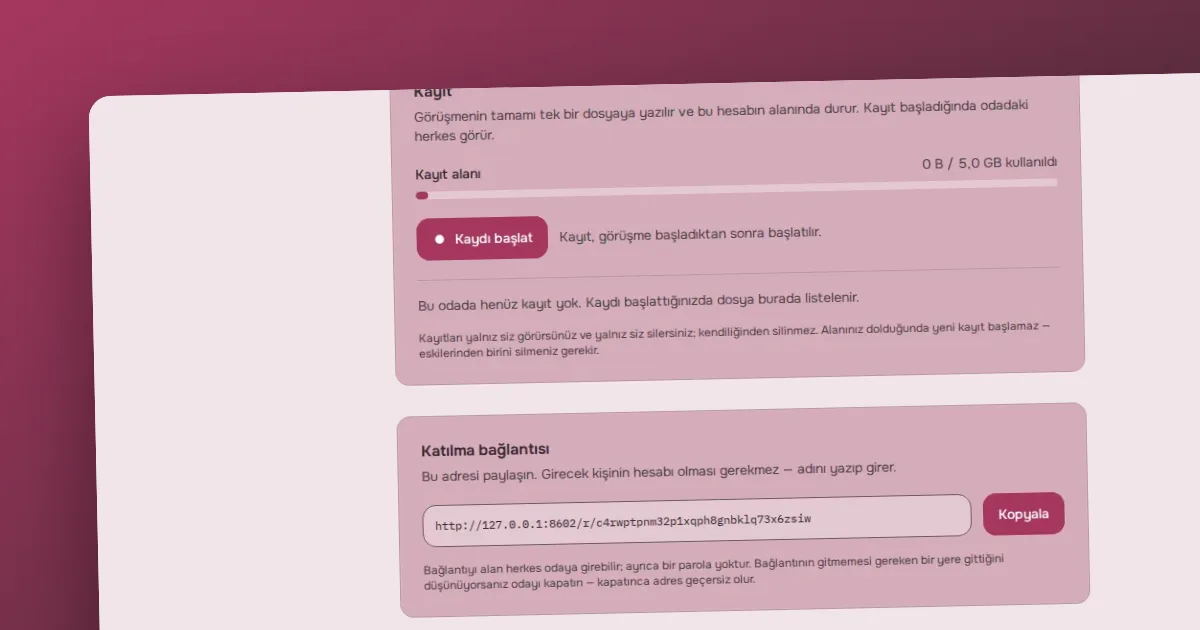
Yazar OVOKODO Ekibi · · 4 dk okuma
In short: In OVOROOM the room owner can turn on a waiting room: a guest who types a name first waits at the door, and the owner admits or refuses each person one by one. During the meeting the owner can remove someone inside and mute everyone. These powers are only in the owner's panel; participants themselves have no management rights.
The link is a secret, but it can leak: an email may be forwarded to the wrong person or appear in a screenshot. The waiting room stops everyone who knows the link from walking straight into the meeting. The guest types a name and waits at the door; you see the name on your screen and decide. If there is a name you do not recognise, you refuse it.
All three actions are a button press processed on the server; so that a browser extension that pre-fetches the owner's page cannot approve everyone at the door by accident, these actions work by a deliberate submission, not by opening an address.
If there is an unwanted participant during the meeting, use remove in the attendance list on the room page. Removal sends a request to the meeting server and the person drops out of the room. This action is open only to the room's owner, and it is checked that the row really belongs to this room.
If background noise is a problem in a crowded meeting, use mute everyone. Participants can turn their microphones back on; the aim is to restore order quickly during a presentation. These actions are rate-limited, because each is a request to the meeting server, and an unlimited "mute" button would hammer an outside service.
OVOROOM deliberately gives participants little authority:
| Right | Owner | Guest | |---|---|---| | Enter the meeting | Yes | Yes (with the link) | | Remove someone else | Yes, from the panel | No | | Mute everyone | Yes, from the panel | No | | See the ledger | Yes | No (sees only their own entry) | | Close the room | Yes | No |
A right that was never granted cannot be abused; that is why management and data rights are off in meeting keys.
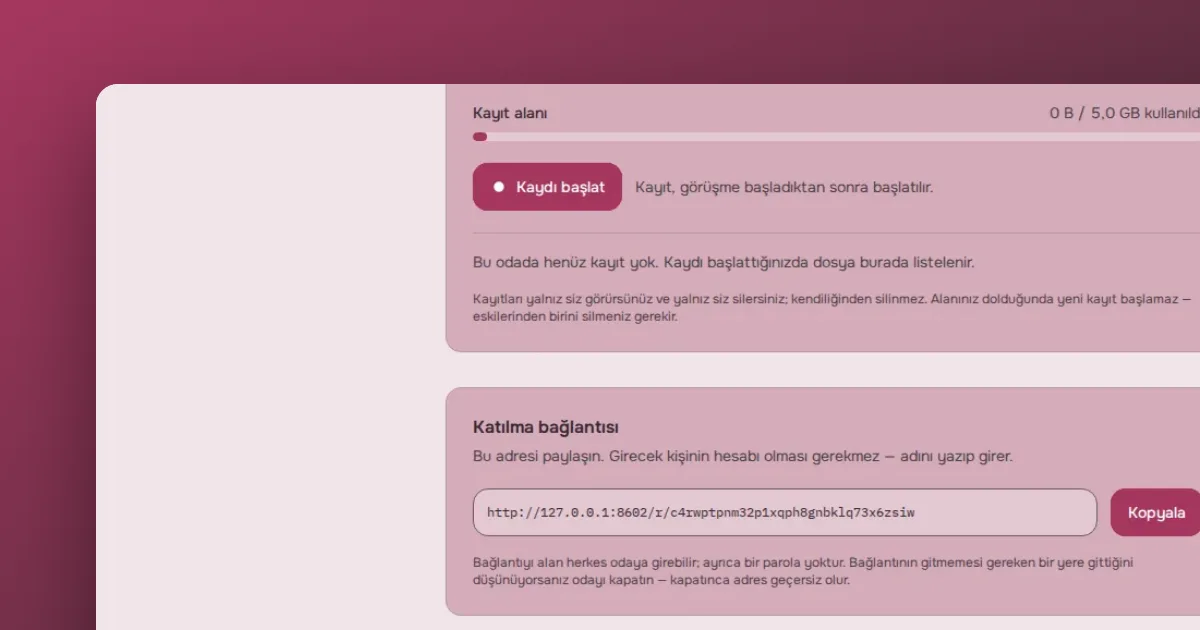
Meeting recording is available if recording storage that runs alongside the product has been defined. Recording is started, stopped, downloaded and deleted from the panel; the recording quota is 5 GB on the free plan and 50 GB on Pro. If recording storage is not defined, the option does not appear. Tell participants before recording a meeting; that is both courtesy and, in many places, a legal requirement. For legal matters, consult an expert.
Close the room. Closing renews the join key; the old link no longer opens. There is no meeting in a closed room, not even for the owner. A room the owner can still enter is not closed.
Before the meeting, open the room and enable the waiting room. Send the link to the invitees. When the time comes, enter first yourself; compare the names at the door with your invitation list and admit them. If there is noise during a presentation, mute everyone. When the meeting ends, review the ledger and close the room. These five steps are enough for most meetings to go smoothly.
Ready? Open a room on OVOROOM.
Guide · · 4 dk okuma
Step by step: open a room on OVOROOM, share the join link and let guests enter without an account, just by typing a name.
Yazıyı oku
Guide · · 4 dk okuma
Explains how the name, entry, exit and duration columns in an OVOROOM room ledger are produced, which one to trust and how to download it as CSV.
Yazıyı oku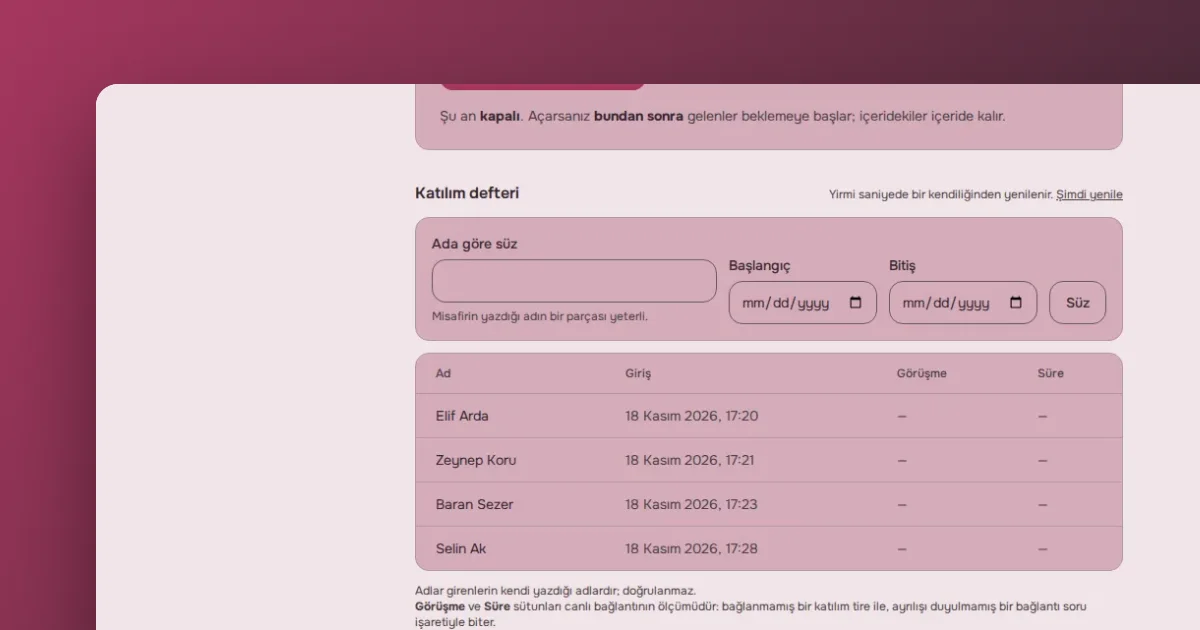
Use case · · 4 dk okuma
A scenario showing a consultant opening a room on OVOROOM for a client call, using the waiting room and reading the ledger after the call.
Yazıyı okuMeasurement cookies measure anonymously how pages are used. They are set only if you allow them; you can change your choice from the Cookie preferences link in the footer.
We use measurement cookies to improve the site. Essential cookies are always on. · Privacy policy(opens on OVOKODO)